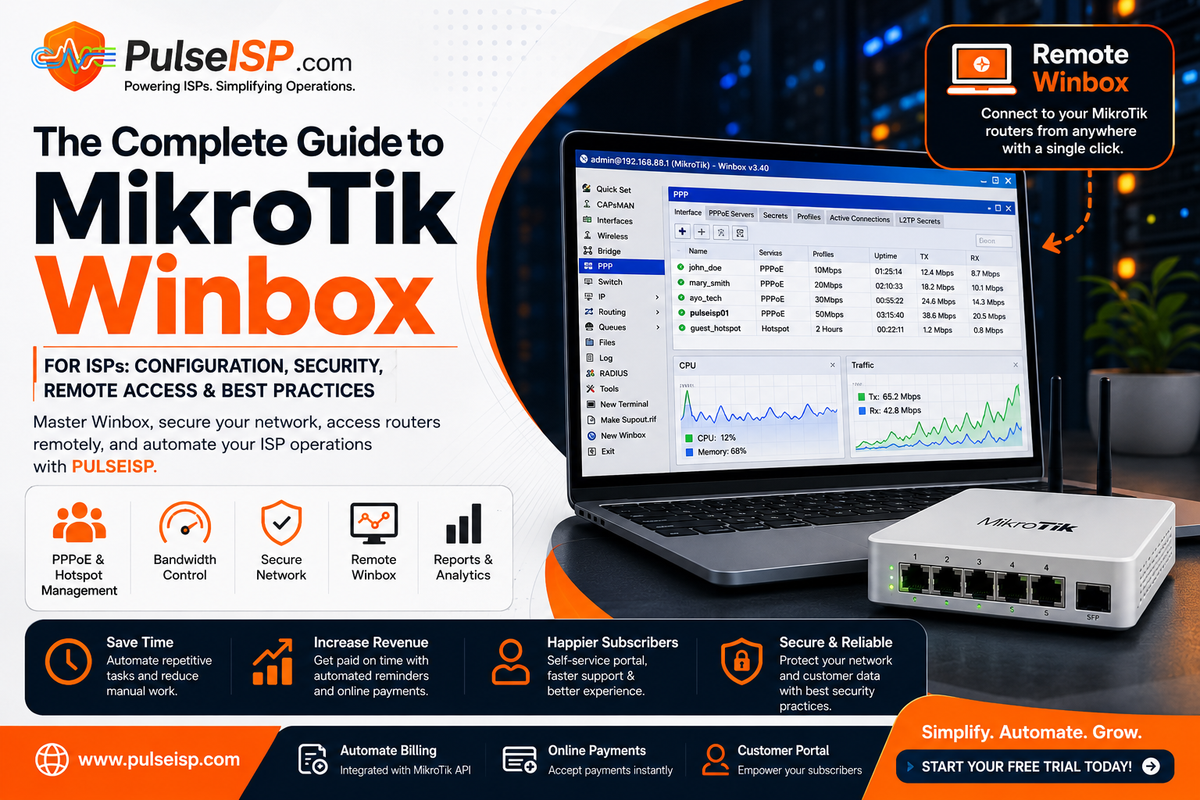
The Complete Guide to MikroTik Winbox for ISPs: Configuration, Security, Remote Access & Best Practices
Introduction
For thousands of Internet Service Providers (ISPs) worldwide, MikroTik RouterOS is the backbone of their network infrastructure. Whether you're delivering internet through PPPoE, operating public Wi-Fi hotspots, or managing point-to-point wireless links, one application makes configuring and maintaining your network significantly easier: Winbox.
Winbox is MikroTik's official graphical management tool, allowing administrators to configure routers without relying entirely on the command line. From creating PPPoE servers and Hotspots to monitoring interfaces, firewall rules, bandwidth queues, and system logs, Winbox provides complete control over your RouterOS devices through an intuitive interface.
For small networks, manually managing routers with Winbox works well. However, as your ISP grows, manually creating subscribers, changing bandwidth profiles, reconnecting suspended customers, and managing routers across multiple locations can quickly become time-consuming.
Modern ISP platforms such as PULSEISP complement Winbox by automating subscriber management while also providing Remote Winbox access, enabling administrators to launch Winbox sessions directly from their dashboard without remembering router IP addresses or manually maintaining remote access.
In this guide, you'll learn how to use Winbox effectively, secure your routers, troubleshoot common issues, manage MikroTik networks remotely, and discover how automation can help your ISP scale more efficiently.
Table of Contents
- What is MikroTik Winbox?
- Why Every ISP Uses Winbox
- Installing and Connecting to Winbox
- Understanding the Winbox Interface
- Essential ISP Tasks in Winbox
- Secure Remote Winbox Access
- Winbox Security Best Practices
- Troubleshooting Common Winbox Issues
- Why Manual Winbox Management Doesn't Scale
- How PULSEISP Automates MikroTik Management
- Frequently Asked Questions
- Final Thoughts
Chapter 1
What is MikroTik Winbox?
Winbox is MikroTik's official desktop application for configuring and managing RouterOS devices.
Instead of using command-line commands for every configuration task, Winbox provides a graphical interface that allows administrators to configure nearly every RouterOS feature through menus and windows.
Whether you're deploying a single office router or managing an ISP serving thousands of subscribers, Winbox provides complete visibility and control over your network.
Using Winbox, administrators can:
- Configure PPPoE servers
- Create Hotspot services
- Manage DHCP servers
- Configure VLANs
- Create firewall rules
- Manage routing
- Configure wireless links
- Apply bandwidth limits
- Monitor interfaces
- View logs
- Backup RouterOS
- Upgrade firmware
- Manage users
Its simplicity, speed, and reliability have made Winbox one of the most popular network management applications among MikroTik administrators.
Why Winbox is Better Than the Command Line
RouterOS includes a powerful command-line interface (CLI), and experienced engineers often use it for advanced configurations.
However, Winbox simplifies many day-to-day tasks by presenting settings through an intuitive graphical interface.
Instead of memorizing commands, administrators can configure routing, queues, firewall rules, and interfaces using menus that are easier to understand and less prone to mistakes.
This makes Winbox particularly valuable for ISPs where technicians perform routine maintenance and troubleshooting every day.
Chapter 2
Why Every ISP Uses Winbox
Running an ISP involves much more than simply providing internet connectivity.
Administrators need to monitor network performance, manage subscribers, secure infrastructure, troubleshoot outages, and maintain reliable service.
Winbox brings all these tasks together in one application.
PPPoE Management
Most residential ISPs use PPPoE to authenticate subscribers.
Through Winbox you can:
- Create PPPoE Servers
- Add Subscriber Accounts
- Create Service Profiles
- View Active Sessions
- Disconnect Users
- Monitor Authentication
Hotspot Management
For hotels, schools, cafés, apartments, and public Wi-Fi providers, Winbox makes Hotspot deployment straightforward.
Administrators can:
- Configure Captive Portals
- Create Voucher Users
- Monitor Sessions
- Configure Login Pages
- Limit User Sessions
Firewall Configuration
Security is one of the most important responsibilities of every ISP.
Winbox allows administrators to:
- Create Firewall Filters
- Configure NAT
- Block Malicious Traffic
- Restrict Management Access
- Protect Customer Networks
Bandwidth Management
Delivering consistent internet speeds requires proper bandwidth management.
Using Winbox, ISPs can:
- Configure Simple Queues
- Create Queue Trees
- Apply Speed Limits
- Prioritize Traffic
- Guarantee Service Quality
Network Monitoring
Winbox provides real-time visibility into your network.
You can monitor:
- CPU Usage
- Memory Usage
- Interface Traffic
- Wireless Signal
- Connected Subscribers
- Uptime
- Temperature (supported devices)
This makes identifying network issues significantly easier.
Troubleshooting
When customers report connectivity issues, Winbox provides tools to quickly diagnose problems.
Administrators can:
- View Logs
- Ping Devices
- Run Traceroute
- Monitor Interfaces
- Check Routing
- Verify DHCP
- Review Firewall Rules
For many network engineers, Winbox becomes the first application they open whenever troubleshooting begins.
Chapter 3
Installing and Connecting to Winbox
Getting started with Winbox takes only a few minutes.
Download the latest version directly from the MikroTik website and launch the application.
Unlike many desktop applications, Winbox does not require installation. Simply open the executable and connect to your router.
Connecting Using an IP Address
If your router already has a configured IP address, connecting is straightforward.
Simply enter:
- Router IP Address
- Username
- Password
Then click Connect.
This is the preferred method for routers already deployed in production.
Connecting Using a MAC Address
One of Winbox's most useful features is the ability to connect using the router's MAC Address.
This is especially helpful when:
- The router has no IP address.
- The IP configuration is incorrect.
- You're deploying a new router.
- The management network is unavailable.
- You're recovering from a configuration mistake.
Simply open the Neighbours tab.
Winbox automatically discovers MikroTik devices on the local network.
Click the desired router.
Click Connect.
No IP address is required.
This feature has saved countless administrators from unnecessary factory resets.
Understanding the Neighbours Tab
The Neighbours window displays:
- Router Name
- MAC Address
- IP Address
- RouterOS Version
- Board Model
- Uptime
For technicians working on-site, this is often the fastest method of locating MikroTik devices.
Before Configuring Any Router
Before making changes to a production router, it's good practice to:
- Create a full backup.
- Export the router configuration.
- Update RouterOS to the latest stable release.
- Upgrade RouterBOOT firmware.
- Label interfaces.
- Document management IP addresses.
These simple habits can save hours of troubleshooting in the future.
Chapter 4
Understanding the Winbox Interface
Although Winbox contains dozens of menus, most ISP administrators use the same core sections every day.
Understanding these areas will help you navigate RouterOS more efficiently.
Interfaces
The Interfaces menu displays every physical and virtual interface on the router.
Here you can:
- Monitor traffic
- Enable or disable interfaces
- Rename ports
- View link status
- Identify disconnected cables
For ISPs, this is often the first place to check when troubleshooting connectivity issues.
IP
The IP menu contains many of RouterOS's core networking features, including:
- IP Addresses
- DHCP Server
- DHCP Client
- DNS
- Firewall
- Routes
- Services
- ARP
Most day-to-day routing and addressing tasks are managed here.
PPP
The PPP section is essential for ISPs offering PPPoE services.
It allows administrators to:
- Create PPPoE Servers
- Manage User Accounts
- Configure Profiles
- Monitor Active Sessions
- Disconnect Subscribers
As your subscriber base grows, however, manually managing users through this menu becomes increasingly time-consuming.
Chapter 5
Essential ISP Tasks in Winbox
While Winbox contains hundreds of RouterOS features, most ISPs rely on a handful of tools every day to keep their networks running smoothly.
From creating subscriber accounts to monitoring bandwidth usage, these routine tasks form the backbone of daily network operations.
Creating PPPoE Subscribers
PPPoE (Point-to-Point Protocol over Ethernet) is one of the most common authentication methods used by residential ISPs.
Using Winbox, administrators can manually create subscriber accounts by navigating to the PPP menu and adding a new user.
For each subscriber, you'll typically configure:
- Username
- Password
- Service Profile
- Local Address
- Remote Address
- Bandwidth Profile
Once the account is created, the customer can authenticate and access the internet.
For a handful of subscribers, this process is straightforward. However, manually creating every account becomes increasingly time-consuming as your subscriber base grows.
Managing Hotspot Users
Hotspot services are widely used in:
- Hotels
- Schools
- Apartments
- Restaurants
- Shopping malls
- Public Wi-Fi networks
Winbox allows administrators to create Hotspot users, assign time limits, generate vouchers, and monitor active sessions.
Typical tasks include:
- Creating new hotspot users
- Resetting passwords
- Disconnecting users
- Viewing active sessions
- Applying bandwidth limits
While these tasks are simple, they become repetitive for businesses managing hundreds of temporary users each day.
Managing Bandwidth with Queues
One of MikroTik's most powerful features is bandwidth management.
Using Simple Queues and Queue Trees, administrators can control how much bandwidth each subscriber receives.
Examples include:
- 10 Mbps Residential Plan
- 20 Mbps Business Plan
- 50 Mbps Fibre Plan
- Unlimited Corporate Package
Queues help ensure customers receive the speeds included in their subscription while preventing individual users from consuming excessive bandwidth.
Monitoring Active Subscribers
Winbox allows administrators to view connected users in real time.
For PPPoE subscribers, you can quickly see:
- Username
- IP Address
- Uptime
- Traffic Usage
- Connection Status
For Hotspot users, you can monitor:
- Login Time
- Session Duration
- Download Usage
- Upload Usage
- Active Device
This information is invaluable when troubleshooting customer complaints.
Monitoring Router Performance
Keeping an eye on router performance helps identify problems before customers notice them.
Winbox makes it easy to monitor:
- CPU Usage
- RAM Usage
- Interface Throughput
- Wireless Signal Strength
- Temperature (supported models)
- Disk Usage
- System Uptime
Regular monitoring allows administrators to detect overloaded routers, failing hardware, or unusual traffic patterns.
Reviewing System Logs
The Log window is one of the most useful troubleshooting tools in RouterOS.
It records:
- User logins
- PPPoE authentication
- Hotspot events
- DHCP activity
- Firewall events
- Interface failures
- System errors
When customers report connectivity issues, the log is often the first place administrators look for answers.
Backing Up Your Router
Every network administrator should regularly back up their RouterOS configuration.
A backup allows you to quickly restore your router after hardware failure, accidental configuration changes, or software corruption.
Best practice is to:
- Create scheduled backups.
- Export configuration files.
- Store backups securely off the router.
A recent backup can save hours of rebuilding your network from scratch.
Chapter 6
Secure Remote Winbox Access
As your ISP expands, managing routers across multiple locations becomes increasingly challenging.
You may have routers installed:
- On communication towers
- Inside apartment buildings
- At customer premises
- In branch offices
- Across different cities
- Even in different countries
Traditionally, accessing these routers remotely requires remembering public IP addresses, maintaining VPN connections, configuring Dynamic DNS (DDNS), or exposing management ports to the internet.
While these methods work, they add complexity and, if not secured properly, can increase your attack surface.
The Challenge with Traditional Remote Access
Imagine receiving a support call from a customer whose router is located several hours away.
A typical workflow might look like this:
Customer Reports a Problem
        ↓
Locate Router IP Address
        ↓
Connect to VPN
        ↓
Launch Winbox
        ↓
Log In
        ↓
Begin Troubleshooting
For a small network this may be manageable.
For an ISP operating dozens or hundreds of routers, repeating this process throughout the day quickly becomes inefficient.
Remote Winbox with PULSEISP
PULSEISP simplifies remote router management with its built-in Remote Winbox feature.
Every MikroTik router added to your PULSEISP account includes a dedicated Remote Winbox link.
Instead of searching for IP addresses or manually establishing remote connections, administrators simply:
- Open the PULSEISP Dashboard.
- Select the router.
- Click Remote Winbox.
- Winbox launches and connects to the selected router.
Your existing MikroTik authentication remains in place, while PULSEISP streamlines the connection process and centralizes router access.
The workflow becomes:
Customer Reports a Problem
        ↓
Open PULSEISP Dashboard
        ↓
Select Router
        ↓
Click Remote Winbox
        ↓
Winbox Opens
        ↓
Begin Troubleshooting
Benefits of Remote Winbox
Remote Winbox helps reduce administrative overhead by making router access faster and more convenient.
Key benefits include:
- Launch Winbox directly from the PULSEISP dashboard.
- No need to remember router IP addresses.
- Manage routers across multiple locations from one place.
- Reduce troubleshooting time.
- Improve technician efficiency.
- Centralize router management.
- Simplify support for distributed ISP networks.
For growing ISPs, this means less time establishing connections and more time solving customer issues.
When Remote Winbox Is Most Valuable
Remote Winbox is particularly useful when:
- Supporting customers in remote locations.
- Managing multiple towers or POPs.
- Operating networks across several towns or cities.
- Working with distributed technical teams.
- Quickly responding to network outages.
Instead of maintaining separate records for every router, administrators can access their infrastructure through a single, centralized dashboard.
Chapter 7
Winbox Security Best Practices
Winbox makes MikroTik routers easy to manage, but that convenience also means your management interface must be properly secured.
A poorly secured router can expose your entire network to unauthorized access, service disruption, or data loss. Fortunately, a few best practices can dramatically improve your security posture.
Change the Default Administrator Account
Every new MikroTik router includes a default admin account.
One of the first things you should do after deploying a router is:
- Create a new administrator account.
- Assign a strong password.
- Disable or remove the default admin account.
Using unique administrator credentials reduces the risk of unauthorized access.
Use Strong Passwords
Weak passwords remain one of the biggest security risks.
A strong password should:
- Be at least 12 characters long.
- Include uppercase and lowercase letters.
- Include numbers.
- Include special characters.
- Be unique for every router.
Avoid using predictable passwords such as:
- admin123
- mikrotik
- password
- companyname123
Keep RouterOS Updated
MikroTik regularly releases RouterOS updates that include:
- Security patches
- Bug fixes
- Performance improvements
- New features
Running outdated software leaves your router vulnerable to known exploits.
Before updating:
- Backup your configuration.
- Read the release notes.
- Upgrade during a maintenance window where possible.
Restrict Winbox Access
Not everyone should be able to reach your router's management interface.
Restrict Winbox access by:
- Allowing only trusted management IP addresses.
- Blocking Winbox access from public networks.
- Creating firewall rules to limit administrative access.
This simple step significantly reduces your attack surface.
Use a VPN for Remote Administration
Whenever possible, access your MikroTik routers through a secure VPN instead of exposing management services directly to the internet.
VPN access provides:
- Encrypted communication.
- Improved security.
- Controlled administrator access.
- Better protection against brute-force attacks.
Disable Unused Services
RouterOS enables several services by default.
If you don't use services such as:
- FTP
- Telnet
- API
- SSH
- WWW
disable them.
Every unnecessary service increases potential security risks.
Backup Your Configuration Regularly
Configuration backups should become part of your routine maintenance.
A backup allows you to recover quickly after:
- Hardware failure
- Configuration mistakes
- Power issues
- Router replacement
Store backups securely and keep multiple versions when possible.
Chapter 8
Troubleshooting Common Winbox Issues
Even experienced network administrators occasionally encounter problems connecting to or managing MikroTik routers.
Fortunately, most issues can be resolved quickly with a systematic approach.
Winbox Cannot Find the Router
If your router doesn't appear under Neighbours, check the following:
- Verify the Ethernet cable.
- Confirm both devices are on the same Layer 2 network.
- Ensure MAC Discovery is enabled.
- Check that the router is powered on.
- Disable any local firewall temporarily for testing.
Unable to Log In
If Winbox reports an authentication error:
- Verify the username.
- Check the password.
- Confirm Caps Lock is not enabled.
- Ensure the account has not been disabled.
- Verify that the login service is still enabled.
High CPU Usage
Slow performance is often caused by excessive CPU utilization.
Possible causes include:
- DDoS attacks
- Routing loops
- High traffic loads
- Misconfigured firewall rules
- Excessive logging
Use Tools → Profile to identify which processes are consuming CPU resources.
High Memory Usage
High RAM utilization may indicate:
- Too many active connections.
- Insufficient hardware resources.
- Memory leaks on outdated RouterOS versions.
- Large routing tables.
Monitoring memory usage regularly helps prevent unexpected performance issues.
PPPoE Subscribers Cannot Connect
If customers cannot authenticate:
Check:
- PPPoE Server status.
- Username and password.
- Service profile.
- IP pools.
- RADIUS configuration (if applicable).
- Interface assignment.
Logs usually provide valuable information about authentication failures.
Hotspot Login Problems
If Hotspot users cannot log in:
Verify:
- Hotspot Server configuration.
- User account status.
- DHCP operation.
- DNS configuration.
- Captive Portal settings.
Most Hotspot issues are related to incorrect DHCP or DNS configuration.
Slow Network Performance
If customers complain about slow internet speeds:
Review:
- Interface utilization.
- Queue configuration.
- CPU load.
- Wireless signal quality.
- Upstream bandwidth.
- Active users.
Winbox provides real-time monitoring tools that make identifying bottlenecks much easier.
Chapter 9
Why Manual Winbox Management Doesn't Scale
Winbox is an exceptional tool for configuring MikroTik routers.
However, it was never designed to become your subscriber management platform.
Imagine managing just five subscribers manually.
Creating accounts...
Changing passwords...
Updating queues...
Suspending unpaid customers...
Reconnecting customers after payment...
The process only takes a few minutes.
Now imagine doing exactly the same tasks for:
- 200 subscribers
- 500 subscribers
- 2,000 subscribers
Instead of improving your network, your team spends hours performing repetitive administrative work inside Winbox.
Common manual tasks include:
- Creating PPPoE accounts.
- Creating Hotspot users.
- Updating bandwidth limits.
- Suspending overdue customers.
- Reconnecting subscribers after payment.
- Resetting passwords.
- Monitoring subscription expiry.
As your customer base grows, these repetitive tasks become operational bottlenecks.
Manual processes also increase the risk of:
- Human error.
- Delayed activations.
- Incorrect bandwidth assignments.
- Forgotten suspensions.
- Lost revenue.
This is why growing ISPs combine Winbox with an automation platform rather than relying on Winbox alone.
Chapter 10
How PULSEISP Automates MikroTik Management
Winbox remains the best tool for configuring MikroTik routers.
PULSEISP complements Winbox by automating the repetitive operational tasks that consume valuable time.
Instead of manually managing subscribers every day, PULSEISP communicates directly with MikroTik through its API.
The result is a faster, more efficient workflow.
Customer Pays Online
        ↓
Payment Verified
        ↓
PULSEISP Processes Payment
        ↓
MikroTik Updated Automatically
        ↓
Customer Connected
        ↓
Invoice Updated
        ↓
Reports Generated
With PULSEISP you can:
- Automatically create PPPoE subscribers.
- Automatically create Hotspot users.
- Suspend overdue accounts.
- Restore internet immediately after payment.
- Generate recurring invoices.
- Accept online payments.
- Offer a customer self-service portal.
- Generate internet vouchers.
- Monitor subscriber activity.
- View business reports.
- Launch Remote Winbox sessions directly from your dashboard.
Instead of switching between multiple tools, administrators manage subscribers, billing, payments, and routers from one centralized platform.
Winbox remains available whenever advanced configuration or troubleshooting is required, while PULSEISP automates the day-to-day operational workload.
Frequently Asked Questions
Is Winbox free?
Yes. Winbox is a free desktop application provided by MikroTik for managing RouterOS devices.
Can I use Winbox on macOS or Linux?
Yes. Although designed for Windows, Winbox works well on macOS and Linux using compatibility tools such as Wine.
What's the difference between Winbox and WebFig?
Winbox is a desktop application, while WebFig is a browser-based interface. Both manage RouterOS, but many administrators prefer Winbox because it is faster and supports MAC address connections.
Can I connect without an IP address?
Yes. Winbox supports MAC Address connections through the Neighbours feature, making it possible to access routers even when an IP address has not been configured.
Is Winbox secure?
Yes, when properly configured. Always use strong passwords, keep RouterOS updated, restrict management access, and avoid exposing Winbox directly to the public internet.
What is Remote Winbox?
Remote Winbox is a PULSEISP feature that allows administrators to launch Winbox sessions directly from the PULSEISP dashboard, simplifying access to MikroTik routers across multiple locations without manually searching for router IP addresses.
Does PULSEISP replace Winbox?
No. Winbox remains your primary configuration tool for MikroTik routers. PULSEISP enhances your workflow by automating subscriber management, billing, payments, reporting, and remote router access.
Final Thoughts
Winbox has earned its place as one of the most trusted tools in the MikroTik ecosystem. Its intuitive interface, powerful configuration capabilities, and real-time monitoring features make it indispensable for ISP technicians and network administrators.
However, as your subscriber base grows, manually managing every customer, router, and service through Winbox alone becomes increasingly inefficient. Routine tasks such as provisioning subscribers, updating bandwidth profiles, suspending unpaid accounts, and reconnecting customers after payment can consume hours every week.
By combining MikroTik with PULSEISP, you can keep the power and flexibility of Winbox while automating the repetitive tasks that slow your business down. From subscriber management and online payments to customer portals, internet vouchers, reporting, and Remote Winbox access, PULSEISP helps you spend less time on administration and more time delivering reliable internet services.
Ready to Simplify MikroTik Management?
Whether you're running a neighborhood hotspot, a growing wireless ISP, or a large fibre network, PULSEISP helps you automate billing, subscriber management, and MikroTik operations from a single dashboard.
Discover how PULSEISP can help you build a smarter, more efficient ISP.